
What Is Docker?
Docker is a platform for packaging and running applications in isolated processes called containers. A container receives the application, its runtime and libraries, plus a controlled filesystem and network view. That makes the application's environment repeatable across a developer laptop, a test system, and a server.
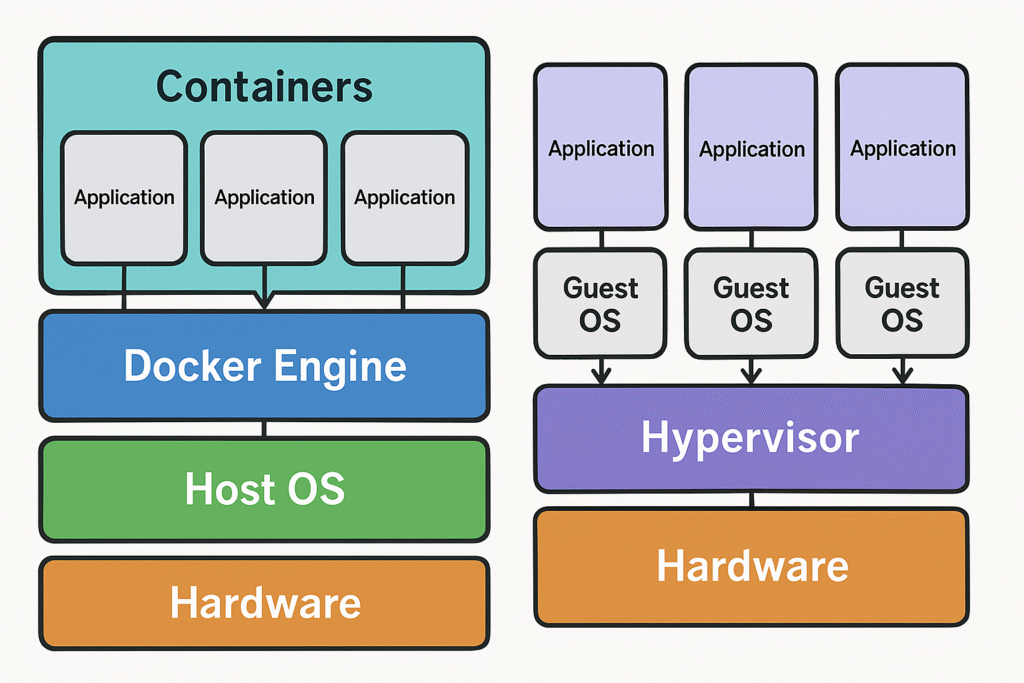
A container is not a tiny virtual machine. Containers on the same Docker host normally share an operating-system kernel while remaining separated through operating-system isolation features. This is why they usually start faster and use fewer resources than full virtual machines.
Why Use Docker?
- Consistency: run the same image in development, testing, and production.
- Dependency isolation: different applications can use different library versions without mixing them.
- Repeatability: a Dockerfile records how an application image is assembled.
- Fast setup: start a known environment without manually installing every dependency on the host.
- Portability: move an image between compatible Docker environments and registries.
Docker makes an environment repeatable, but it does not automatically make an application secure, highly available, or correctly configured.
How the Main Pieces Connect
The Docker client sends requests such as docker build and docker run to the Docker Engine. The engine builds images, downloads or uploads image layers, creates networks and volumes, and manages containers.
Core Docker Concepts
| Concept | Plain explanation |
|---|---|
| Image | A read-only package of filesystem layers and metadata used to create containers. |
| Container | A runnable instance of an image with its own writable layer, process space, and configuration. |
| Dockerfile | A text file containing ordered instructions for building an image. |
| Registry | A service that stores and distributes images. Docker Hub is one example. |
| Volume | Storage managed outside a container's disposable writable layer. |
| Bind mount | A host file or directory made available inside a container. |
| Network | A controlled communication path between containers and other systems. |
| Compose | A YAML-based way to define and operate a multi-container application. |
How Linux Containers Stay Isolated
Linux containers use kernel features rather than a separate guest operating system. Namespaces give a container its own view of resources such as processes, networking, mounts, and hostnames. Control groups, usually shortened to cgroups, account for and can limit resources such as CPU and memory.
docker run --memory 512m --cpus 1 nginxThis applies practical cgroup-backed limits: --memory 512m limits the container's memory to 512 MB, while --cpus 1 limits it to approximately one CPU's worth of processing capacity.
These controls separate and constrain processes, but containers still share the host kernel. Isolation is therefore a security control to configure carefully, not a claim that a container is identical to a virtual machine.
Containers and Virtual Machines
| Containers | Virtual machines |
|---|---|
| Share the host-side operating-system kernel. | Run a complete guest operating system through a hypervisor. |
| Usually start quickly and have a smaller footprint. | Usually need more storage and memory and take longer to boot. |
| Package the application and user-space dependencies. | Package an entire machine environment. |
| Useful for repeatable services, development environments, and deployment units. | Useful when a separate kernel, different operating system, or stronger machine boundary is required. |
On Windows and macOS, Docker Desktop can provide the required Linux environment through a managed virtual machine. The container still behaves like a container; the VM supplies the compatible kernel underneath it.
Run a First Container
After installing Docker Desktop or Docker Engine, confirm that the client can reach the engine:
docker versionThen run an Nginx web server:
docker run --name plain-nginx -d -p 127.0.0.1:8080:80 nginxDocker downloads the image if it is missing, creates a container named plain-nginx, starts it in detached mode, and publishes the container's port 80 on host port 8080. Open http://localhost:8080 to reach it.
docker ps
docker logs plain-nginx
docker stop plain-nginx
docker rm plain-nginx
Stopping preserves the container so it can be started again. Removing deletes that container and its writable layer, but not the image or separately managed volumes.
Understand the Container Lifecycle
A container moves through a small set of states. The command docker run is convenient because it performs both docker create and docker start for a new container. By contrast, docker start starts an existing stopped container with its earlier configuration and writable layer.
| Command | Result | State after the command |
|---|---|---|
docker create IMAGE | Prepare a new container without starting its main process. | Created |
docker start NAME | Start an existing created or stopped container. | Running |
docker stop NAME | Ask the running container to stop gracefully. | Exited (stopped) |
docker rm NAME | Delete a stopped container. | Removed; it no longer appears as a container |
Understand Port Publishing
docker run -p 8080:80 nginx
docker run -p 127.0.0.1:8080:80 nginx
In both commands, the application listens on port 80 inside the container and Docker maps host port 8080 to it. With ordinary Docker defaults, -p 8080:80 publishes on all host addresses. Adding 127.0.0.1 binds the published port to the local computer only, which is the safer choice for a private development service.
EXPOSE in a Dockerfile documents an intended port, but it does not publish that port by itself. Actual reachability can also depend on the host firewall, Docker Desktop, and the surrounding network.
Publish only the ports that are required, and choose the host address deliberately. Do not expose a database or administration interface broadly just to make local testing convenient.
Build an Image with a Dockerfile
Create an html directory containing an index.html file, then place this Dockerfile beside it:
FROM nginx:alpine
COPY ./html /usr/share/nginx/html
Build and run the image:
docker build -t plain-site:1.0 .
docker run --name plain-site -d -p 127.0.0.1:8080:80 plain-site:1.0
The final dot in docker build selects the current directory as the build context. Add a .dockerignore file to exclude unnecessary content such as local caches, dependency folders, source-control data, and secret-bearing environment files from that context.
Pass Runtime Configuration Carefully
Environment variables are a common way to provide ordinary runtime settings:
docker run -e APP_ENV=production myappThis sets APP_ENV inside the new container. Environment variables can be revealed through container inspection, process details, debugging output, or logs, so do not treat them as a secret vault. Supply passwords and keys through a suitable secret manager or carefully permissioned mounted secret file, following the deployment platform's guidance.
Image Layers and Build Cache
Most Dockerfile instructions create reusable image layers. If an instruction and its inputs have not changed, Docker may reuse a cached result. Put stable setup steps before frequently changing application files so ordinary source edits do not invalidate every earlier layer.
- Use a small, trusted base image that still contains what the application needs.
- Pin deliberate versions instead of relying blindly on a moving
latesttag. - Use multi-stage builds when build tools are not needed in the final runtime image.
- Never copy passwords, API keys, private keys, or unnecessary files into an image layer.
Persist Data Correctly
A container's writable layer is tied to that container. Use external storage for data that must survive replacement.
| Storage type | Best use | Example |
|---|---|---|
| Named volume | Application data managed by Docker, such as a database directory. | -v app-data:/var/lib/app |
| Bind mount | A known host path that should be directly visible, often source code during development. | -v ./site:/usr/share/nginx/html:ro |
| Temporary filesystem | Short-lived sensitive or scratch data that should remain in memory. | --tmpfs /run/app |
Back up important volume data separately. A volume protects data from ordinary container replacement, not from accidental deletion or corruption.
Connect Containers with Networks
A user-defined network lets containers communicate by container or service name while remaining isolated from unrelated networks.
docker network create app-net
docker run -d --name cache --network app-net redis:alpine
docker run -d --name web --network app-net nginx:alpine
Both containers join app-net. The web container could resolve the hostname cache if its application needed Redis. A container port does not need to be published to the host for other containers on the same network to use it.
Use Docker Compose for Multiple Services
A Compose file describes services, networks, and volumes together. Save this as compose.yaml:
services:
  web:
    image: nginx:alpine
    ports:
      - "127.0.0.1:8080:80"

  cache:
    image: redis:alpine
    volumes:
      - cache-data:/data

volumes:
  cache-data:
docker compose up -d
docker compose ps
docker compose logs -f
docker compose downCompose creates a default application network, so services can discover one another by service name. docker compose down removes the created containers and network; named volumes remain unless they are explicitly removed.
Essential Command Reference
| Command | Purpose |
|---|---|
docker image ls | List local images. |
docker pull IMAGE | Download an image from a registry. |
docker build -t NAME:TAG . | Build and tag an image from the current directory. |
docker ps -a | List running and stopped containers. |
docker run IMAGE | Create and start a new container. |
docker start NAME | Start a container that already exists. |
docker exec -it NAME sh | Start a shell process in a running container when that image provides sh. |
docker logs -f NAME | Follow a container's standard output and error logs. |
docker stats NAME | Watch live CPU, memory, network, and storage-I/O usage. |
docker top NAME | Show the processes running in a container. |
docker inspect NAME | Show detailed configuration and runtime metadata. |
docker stop NAME | Request a graceful container stop. |
docker rm NAME | Remove a stopped container. |
docker volume ls | List Docker-managed volumes. |
docker network ls | List Docker networks. |
Common Mistakes and Safer Defaults
- Do not store important data only in a container's writable layer.
- Do not bake secrets into a Dockerfile, image layer, or public Compose file.
- Do not assume a container is the same security boundary as a virtual machine.
- Avoid running as root inside the container when the application can use a dedicated user.
- Use trusted images, keep them updated, scan them, and remove packages the runtime does not need.
- Read logs and inspect container state before repeatedly deleting and recreating a failing service.
Quick Recap
- A Dockerfile builds an image; an image creates one or more containers.
- Registries distribute images, while volumes preserve application data.
- Port publishing connects a host port to a container port.
- User-defined networks let related containers communicate by name.
- Compose defines multi-container applications in one YAML configuration.
- Containers improve consistency, but secure images and careful runtime settings still matter.